




































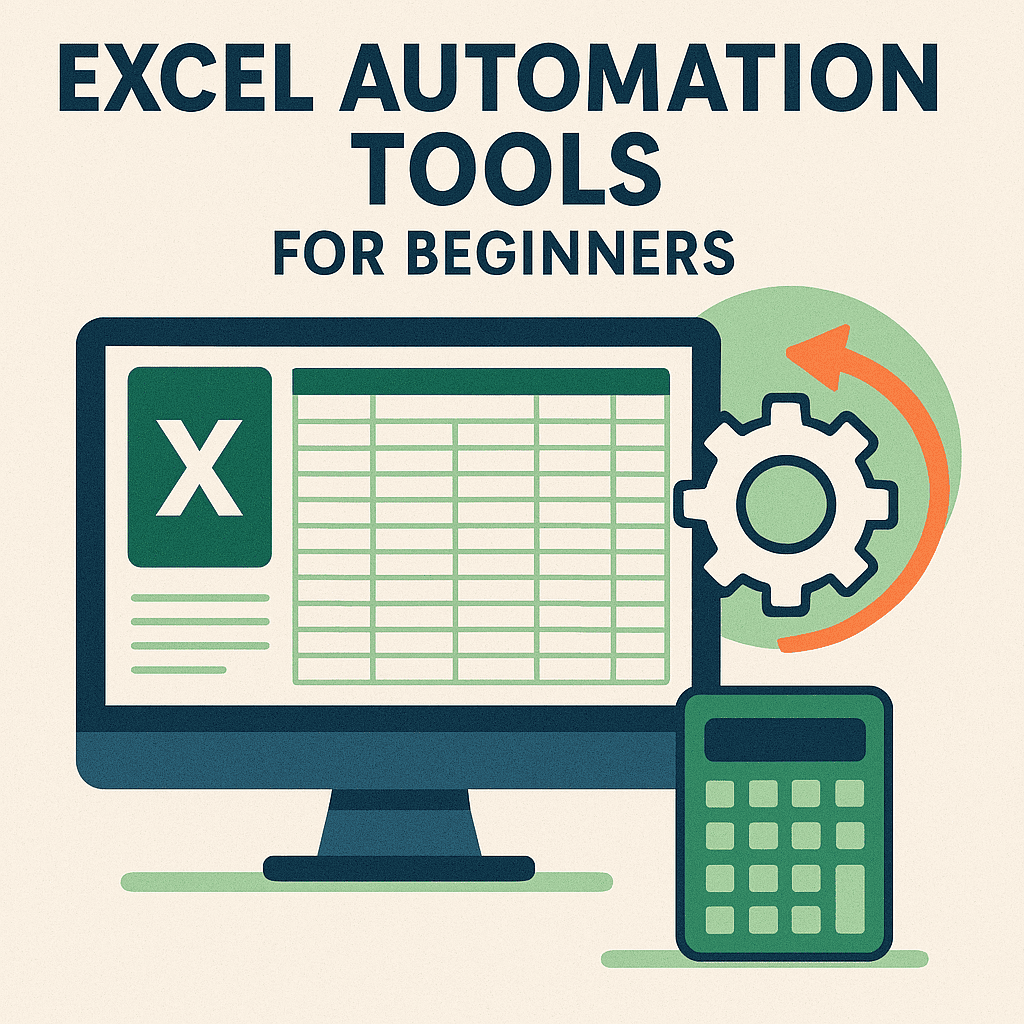
Excel automation eliminates the hours you spend on repetitive tasks—formatting cells, copying data between sheets, manually updating weekly reports—by letting tools handle the grunt work while you focus on analysis that matters. The core proposition is simple: tasks that consume 30 minutes of manual labor every week can be reduced to a 2-minute click-through once you set up the right automation. Multiply that across dozens of recurring tasks, and you’re reclaiming hundreds of hours annually. The catch is that not all automation tools are equal, the landscape is shifting fast, and picking the wrong starting point can make the whole concept feel more complicated than it needs to be.
This analysis draws from practical daily use across multiple Excel automation tools, supplemented by current 2026 industry benchmarks and Microsoft’s own documentation.
Time savings data. A weekly sales report that took 30 minutes of manual export, copy-paste, reformatting, and chart creation was reduced to 2 minutes using Power Query—saving 28 minutes weekly, or over 24 hours annually. Customer data cleanup tasks that required manual correction of inconsistent name formats were automated to run instantly on every data refresh.
Tool capability mapping. Power Query handles data import, cleaning, transformation, and combination from multiple sources—CSV files, databases, web sources—without code. Office Scripts records actions and converts them into reusable TypeScript scripts. Power Automate connects Excel with hundreds of external apps through visual drag-and-drop workflows. VBA offers deep customization through manual coding. Third-party tools like Zapier, Kutools, Ajelix, and Coefficient address specific niches.
Adoption trends. Microsoft has been reducing support for VBA while investing heavily in Office Scripts and Power Automate. Many enterprises now block macro-enabled files for security reasons. AI-powered Excel tools are emerging but remain immature for critical workflows.
Platform availability. Power Query works across Excel for Windows and Mac. Office Scripts functions in Excel for the web and Windows but not Mac. VBA works in all desktop Excel versions but is increasingly restricted by enterprise policies. Power Automate operates as a separate platform that connects to Excel.
How the System Works
Excel automation operates through four distinct layers, each suited to different task types and user skill levels.
Layer 1: Data transformation engines. Power Query sits at the foundation. It works by establishing a connection to your data source—whether that’s a CSV export, a database, a web page, or another workbook—and then applying a sequence of transformation steps. You trim whitespace, fix text case, remove duplicates, split columns, merge tables, and reshape data through a visual interface. These steps are recorded as a repeatable sequence. When your source data updates, you click “Refresh All” and every transformation runs again automatically. The critical insight is that Power Query separates the data preparation from the analysis. You set up the cleaning process once, and it executes identically every time, eliminating the human errors that creep in during manual repetition.
Layer 2: Action recording and scripting. Office Scripts extends this by capturing your actual clicks and keystrokes in Excel and converting them into TypeScript code. You perform your formatting, data entry, or cell manipulation manually once. The recorder translates those actions into a script that can be replayed. For simple tasks, you never look at the code. For more complex workflows, you can edit the TypeScript directly to add conditional logic, loops, or error handling. The scripts live in your OneDrive and can be shared with team members, making them collaborative assets rather than personal macros.
Layer 3: Cross-application orchestration. Power Automate moves automation beyond Excel’s boundaries. It creates workflows triggered by events—when an email arrives with an attachment, when a new row is added to a spreadsheet, when someone submits a form. The workflow then performs actions across connected apps: posting a Teams notification, updating a SharePoint list, sending an approval request, or logging data to a database. Excel becomes one node in a larger automated process rather than an isolated tool. The visual interface lets you build these flows by connecting blocks, similar to assembling a flowchart.
Layer 4: Legacy scripting. VBA remains the deepest layer of customization. You write macros that can manipulate every aspect of Excel—creating custom functions, building user forms, automating across multiple Office applications, and implementing complex business logic. The power is real, but so is the overhead. VBA requires learning a programming language, and the resulting macros are harder to maintain, share, and secure than newer alternatives.
The relationship between these layers matters. Power Query handles data preparation. Office Scripts handles task automation within Excel. Power Automate connects Excel to the broader tool ecosystem. VBA fills gaps that the others can’t reach. Most users only need one or two of these layers. The mistake is trying to learn all four simultaneously.
Challenges
Despite the clear benefits, Excel automation presents real obstacles that are worth understanding before diving in.
Premature automation is the most common mistake. If you perform a task once a month, automating it might take longer than just doing it manually. The threshold where automation pays off is roughly weekly repetition. Below that, the setup cost exceeds the savings. Resist the urge to automate everything—focus on the tasks that genuinely drain your time on a recurring basis.
Tool selection paralysis is real. Power Query, Office Scripts, Power Automate, VBA, Zapier, Kutools—the sheer number of options can freeze beginners. The solution is simple: start with Power Query for data tasks. It has the lowest barrier to entry and the highest immediate payoff. Most people can be productive within an hour. Only branch out when you hit a specific limitation.
Platform fragmentation creates friction. Office Scripts doesn’t work on Mac. VBA is increasingly blocked by enterprise security policies. Power Automate requires a separate platform with its own learning curve. Power Query is the most universally available, but even it has quirks across versions. Before committing to a tool, verify it works on your specific setup.
Documentation is the silent killer. Automation that isn’t documented becomes a liability. When you set up a Power Query refresh or an Office Script, write down what it does, how to trigger it, and what to do when it breaks. The person who maintains your automation six months from now will almost certainly be you, and you will not remember the details.
AI-powered tools require caution. Tools like Ajelix that use AI for formula generation are promising but immature. They can produce incorrect formulas with confident presentation. For critical business processes, verify AI-generated output thoroughly before relying on it. The technology is improving rapidly, but trust should be earned through testing, not assumed through marketing.
Testing discipline is non-negotiable. Before running any automation on live data, test it on a backup copy. A Power Query transformation that accidentally deletes a column, or an Office Script that overwrites cells incorrectly, can cause damage that takes significant effort to undo. The few minutes spent testing on a copy prevent hours of recovery.
Migration from VBA is slow and painful. Organizations with years of VBA macros face a difficult transition. The macros work, they’re deeply embedded in workflows, and replacing them requires re-implementation in newer tools. Microsoft’s declining support for VBA creates urgency, but the practical reality is that VBA will persist in many organizations for years to come.
Future
The trajectory of Excel automation points toward three converging trends that will reshape how people work with spreadsheets.
AI-native automation is arriving. Microsoft is integrating Copilot directly into Excel, enabling natural language commands that generate formulas, create charts, and build basic automations from plain English descriptions. Within two to three years, the line between “writing a formula” and “telling Excel what you want” will blur significantly. The implication is that the entry barrier for automation will drop further, but the ceiling for what’s possible will also rise as AI handles increasingly complex orchestration.
Power Query and Power Automate will consolidate Microsoft’s strategy. These tools represent where Microsoft is investing, while VBA receives diminishing attention. Expect Power Query to gain more transformation capabilities, more data source connectors, and tighter integration with Power Automate. The vision is a seamless pipeline: data flows in through Power Query, gets transformed automatically, triggers workflows through Power Automate, and surfaces results in Teams or SharePoint—all without writing code.
Office Scripts will mature into VBA’s replacement. Microsoft is actively developing Office Scripts, and its trajectory suggests it will eventually cover most VBA use cases. The key advantage is cloud-native design—scripts live in OneDrive, work across the web, and integrate with Microsoft’s broader platform. Within three to five years, expect Office Scripts to be the default recommendation for users who need custom automation beyond what Power Query provides.
Third-party AI tools will differentiate. The current wave of AI-powered Excel tools—Ajelix for formula generation, Coefficient for database connections, Zapier for cross-app workflows—will specialize further. Some will become deeply embedded in specific industries. Others will be absorbed by Microsoft or Google as native features. The tools that survive will be those that solve problems the platform-native solutions cannot.
The fundamental skill shift is already underway. The future of Excel automation is not about learning VBA or mastering complex macros. It’s about understanding data flows—knowing what needs to happen, in what order, and with what dependencies—and then selecting the right tool to execute that logic. The professionals who thrive will be those who think in terms of processes rather than formulas, and who can evaluate automation tools critically rather than adopting every new option that appears.
For anyone starting today, the practical advice remains simple: learn Power Query first. It handles the most common needs, requires no programming, and positions you well for the tools that are coming. The future belongs to people who can orchestrate data workflows, not just fill cells. That future is already here.

Independent technology writer focused on artificial intelligence, emerging technologies, and digital innovation. Covers AI applications in sports, productivity, and online business.