



























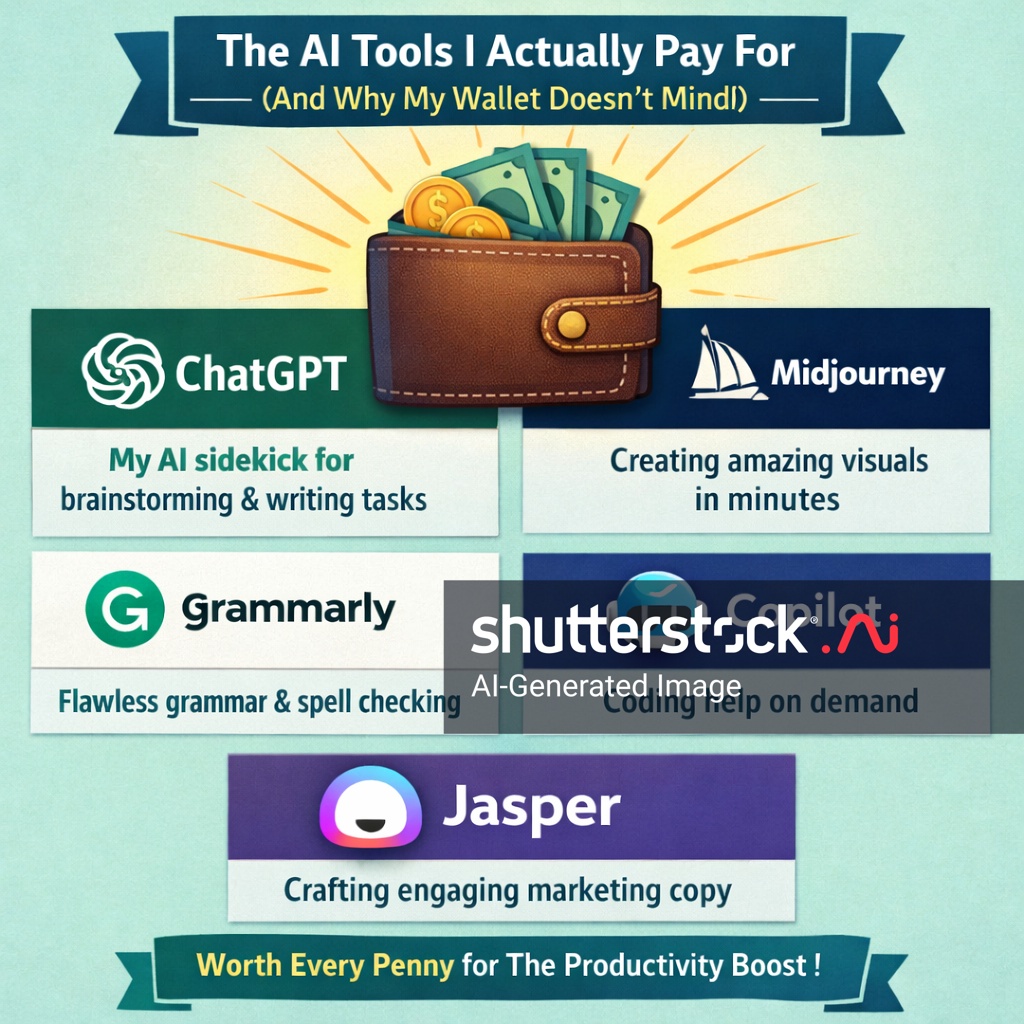
A Confession Before We Start

Let me tell you about the moment I stopped feeling guilty about my AI subscriptions.
I was staring at a PRD at 11 PM, dreading the rewrite my manager had requested. Three hours of work minimum, probably more. My brain was fried. My eyes were burning. I just wanted to go to bed.
I opened Claude, dropped in my draft, and asked it to restructure the whole thing.
Twenty minutes later, I had a version that needed maybe 30 minutes of polishing. I sent it to my manager at 11:25 PM and went to sleep.
That $20 subscription paid for itself in a single evening.
I’ve since become a convert. Not a cheerleader—I still roll my eyes at half the AI hype out there. But I’ve become a genuine believer that the right paid tools change how you work in ways free tiers simply can’t match.
Here’s what I actually pay for, what I use each tool for, why my wallet doesn’t mind, and—just as importantly—what you should start with based on your actual job.
Part 1: The Quiet Revolution Nobody’s Talking About
There’s something happening in offices right now. It’s not dramatic. There are no press releases about it. But it’s real.
AI productivity tools have quietly matured from flashy gimmicks into genuine workhorses that save people hours every single day. Not “someday when the technology gets better.” Right now. Today.
I spent months testing dozens of these tools with real workflows—not the marketing demos, not the carefully staged Twitter screenshots, but the actual grind of daily work. What I found surprised me:
The best AI tools aren’t the most impressive-sounding ones. They’re the boring ones that just work.
The ones that don’t crash. The ones that remember what you were working on. The ones that integrate into your existing workflow instead of forcing you to adapt to them.
Part 2: Why Free Tiers Aren’t Enough (For Professional Work)
Let me be direct with you: I spent months convincing myself the free versions were good enough.
They weren’t.
The friction accumulated invisibly at first. Rate limits hitting mid-task, forcing me to wait or switch tools. Context windows too small for my actual documents—I’d paste in a user research summary, and the AI would forget the beginning by the time it reached the end. Starting every conversation from zero because nothing remembered my product, my team, or my current priorities.
I noticed I was spending more time managing the tools than benefiting from them.
Here’s what finally broke me: I calculated how much time I was wasting on AI-related overhead versus how much time I was actually saving. The math was embarrassing. Free tiers weren’t saving me time—they were just redistributing my inefficiency into new shapes.
For product managers specifically, the constraints hit even harder:
- Rate limits interrupt your flow – You’re in the middle of thinking through a complex problem, and suddenly the tool stops responding. The momentum dies.
- No memory across sessions – Every conversation starts from scratch. You re-explain your product, your stakeholders, your constraints. Every. Single. Time.
- Restricted uploads – You can’t analyze documents, spreadsheets, or prototypes together. The context that matters most is locked away.
- Lower priority processing – During peak hours, free tier responses slow to a crawl. When you’re on a deadline, this is infuriating.
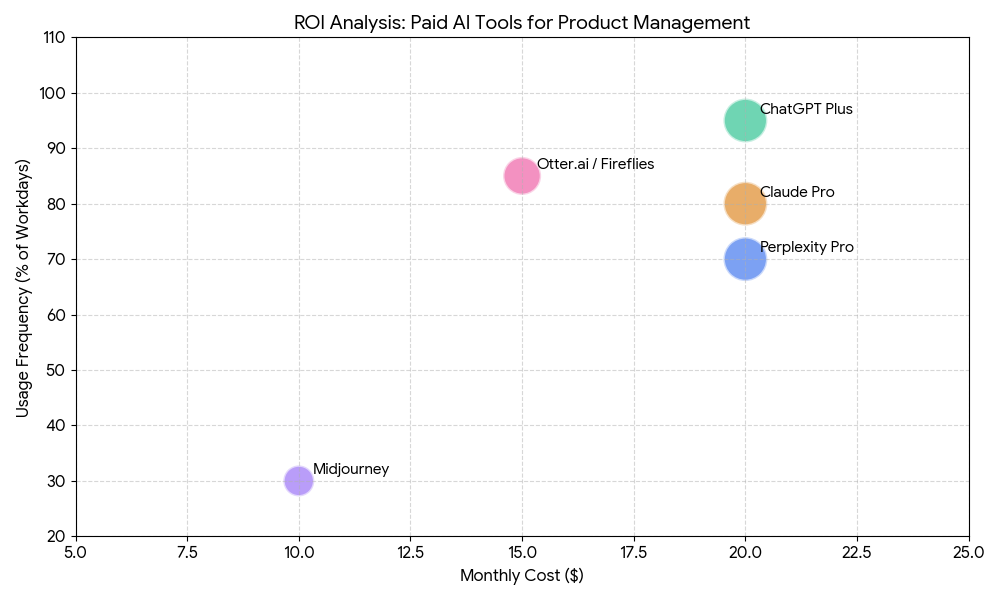
The math is simple: if a $20/month tool saves you two hours per month, it’s paid for itself. Most of the tools I’m about to recommend save considerably more than that.
Part 3: What AI Productivity Tools Actually Do (A Framework)
Before we dive into specific tools, let me give you a framework for thinking about them. Not all AI tools are created equal, and understanding what category a tool falls into helps you know whether you actually need it.
Capability Multipliers take something you already do well and make you dramatically better at it. Think ChatGPT helping a skilled writer draft faster—that’s a multiplier. These tools amplify your existing strengths.
Productivity Accelerators take tasks you do adequately and make them faster. They compress time but don’t fundamentally change your output quality. Most AI tools live here. They’re useful, but they won’t make you a different professional.
Skill Builders teach you something new or help you do things you couldn’t do before. These are rarer, but they’re game-changing when you find them. Claude explaining complex code patterns you didn’t understand? That’s a skill builder.
The mistake most people make? Grabbing every new tool that promises magic without understanding which category it falls into. The professionals I know who actually built leverage picked a small stack early and stuck with it.
Part 4: The Complete AI Productivity Toolkit (2026 Edition)
Let me walk you through the tools that actually deliver value. Some are free. Some are paid. All of them have earned their place in my workflow.
ChatGPT (OpenAI) – The Versatile Foundation
You probably already know ChatGPT. But are you using it effectively?
Beyond simple Q&A, ChatGPT excels at brainstorming, drafting emails, debugging code, and summarizing long documents. The improved browsing feature lets it handle complex document analysis that would otherwise eat hours of your time.
What it’s actually good for:
- Writing first drafts of anything (blog posts, emails, proposals)
- Brainstorming when you’re stuck
- Explaining complex topics in simple terms
- Quick coding help
- Summarizing long articles or transcripts
What it’s not good for:
- Tasks requiring very long context (use Claude for this)
- Real-time research with citations (use Perplexity)
- Deep product documentation (Claude again)
Pricing: Free tier available; Plus at $20/month
My take: Start here if you’re new to AI tools. The free tier is genuinely useful for personal tasks. Upgrade when you hit the rate limits repeatedly.
Google Gemini – The Research Powerhouse
Gemini shines in research and planning. Its deep integration with Google’s ecosystem makes it powerful for anyone already living in that world (which is most of us, let’s be honest). The multimodal capabilities mean it can analyze images, charts, and documents in context.
What it’s actually good for:
- Research that requires current information (web search built-in)
- Analyzing images and charts within documents
- Google Workspace users (Docs, Gmail, Drive integration)
- Long document analysis (2 million token context window)
What it’s not good for:
- Creative writing (output feels generic)
- Tasks outside Google’s ecosystem
Pricing: Free tier; Advanced at $20/month
My take: The free tier is surprisingly generous. Use it for research before paying. The paid version matters if you’re hitting usage limits or need the extended context window for massive documents.
Claude (Anthropic) – The Thoughtful Writer
Claude has carved out a niche with its thoughtful, nuanced responses. It’s particularly strong for long-form writing, analysis, and coding tasks where precision matters. Many developers and product managers prefer it for complex reasoning.
What it’s actually good for:
- Writing long documents (PRDs, research reports, strategic memos)
- Analyzing complex information across multiple sources
- Coding tasks where quality matters
- Tasks requiring nuance and careful reasoning
- Following specific style guides or brand voices
What it’s not good for:
- Image generation (doesn’t exist)
- Real-time research (knowledge cutoff)
- Tasks where speed matters more than quality
Pricing: Free tier; Pro at $20/month
My take: If you only pay for one tool, make it this one. The free tier is good for testing. The Pro tier is where the magic happens for professional work.
Perplexity Pro – The Research Assistant Who Cites Sources
Perplexity replaced Google for most of my research work. The difference is citations—every answer comes with sources you can verify, which matters enormously when you’re preparing stakeholder updates or strategic recommendations.
What it’s actually good for:
- Competitive research
- Market analysis
- Fact-checking claims
- Onboarding to new topics or industries
- Any research where credibility matters
What it’s not good for:
- Writing long-form content
- Tasks requiring your private context (it doesn’t remember you)
Pricing: Free tier; Pro at $20/month
My take: Essential for anyone who regularly presents research findings to stakeholders. The free version is good for casual use. Pro matters when you need citations and credibility.
Notion AI – For Teams Already Living in Notion
Notion AI only makes sense if your team already uses Notion. If you’re a team of one using Google Docs and Confluence, skip this. But if your product wiki, meeting notes, and specifications live in Notion, the AI integration transforms how you work.
What it’s actually good for:
- Synthesizing information across your workspace
- Auto-tagging meeting notes and connecting them to relevant specs
- Extracting action items into task databases
- Cross-document search that understands context
What it’s not good for:
- Teams not using Notion (obviously)
- Tasks requiring external research
Pricing: AI add-on at $10/member/month (included in some business plans)
My take: Only if you’re all-in on Notion. If you are, it’s the highest-value subscription on this list because it works exactly where you already work.
Granola – For Meeting Intelligence That Actually Helps
Granola occupies a specific niche: AI-enhanced meeting notes that don’t try to do everything. It’s not a general AI assistant. It’s a meeting tool that uses AI to make your notes actually useful.
What it’s actually good for:
- Transcribing meetings without manual note-taking
- Structuring notes into themes, decisions, and action items
- Auto-assigning action items based on context
- Follow-up reminders that actually trigger
What it’s not good for:
- People who run few meetings
- General AI tasks (it only does meetings)
Pricing: $12/month
My take: Essential for high-meeting-load professionals. Skip if you have a quieter calendar.
Zapier AI – The Automation Bridge
Zapier AI transforms how we automate workflows. It connects disparate apps and lets you describe automations in plain English—no coding required. This is where AI becomes genuinely transformative for business operations.
What it’s actually good for:
- Connecting AI tools to your existing apps
- Building automated workflows without coding
- Triggering actions based on AI outputs
What it’s not good for:
- Simple workflows (overkill)
- Teams without multiple tools to connect
Pricing: Starts at $19.99/month
My take: This is advanced. Don’t start here. But once you have 3-4 AI tools and want them to work together, Zapier becomes essential.
Microsoft Copilot – For the Microsoft Ecosystem
Copilot integrates deeply across Windows, Edge, and Microsoft 365. It handles drafting emails, generating presentations, and automating repetitive workflows through natural language prompts.
What it’s actually good for:
- Microsoft 365 users (Teams, Outlook, Word, Excel, PowerPoint)
- Enterprise workflows
- Teams already in Microsoft ecosystem
What it’s not good for:
- Individuals or teams not using Microsoft products
- Tasks outside Microsoft’s walled garden
Pricing: $30/user/month
My take: Only relevant if your company is a Microsoft shop. If you are, this is probably already being discussed at the IT level.
Part 5: The 5 Subscriptions I Actually Pay For (Product Manager Edition)
Let me get specific. I’m a product manager. My days involve PRDs, stakeholder updates, user research synthesis, competitive analysis, and way too many meetings.
Here’s what I actually pay for out of my own pocket (my employer covers some, but I cover others because they’re worth it).
1. Claude Pro ($20/month) – My Primary Thinking Partner
I use this for approximately 70% of my AI-assisted work. The writing quality is genuinely superior for product documents.
My actual workflow:
I write the first draft of a PRD myself because the thinking matters. Then I upload everything—competitor analysis PDFs, user interview transcripts, data exports—and ask Claude to stress-test the spec.
It catches gaps I missed. It identifies assumptions I didn’t state explicitly. It asks questions I should have asked before the design review.
The 200,000 token context window enables this. I drop in a quarter’s worth of user feedback (dozens of sources) and ask “what are customers most frustrated about?” The answer synthesizes across everything in seconds.
The Projects feature means Claude remembers my product context across sessions. I don’t re-explain that I’m the PM for a B2B SaaS platform with particular technical constraints and stakeholder dynamics. It just knows.
Is it worth $20? In the time it saves me on PRDs alone, absolutely. But it also makes my specs genuinely better, which has career value beyond time savings.
2. ChatGPT Plus ($20/month) – For Speed and Multimodal Power
I resisted this for months. Why pay for something when I had Claude?
Here’s the answer: different tools do different things better.
When I reach for ChatGPT instead of Claude:
- Rapid iteration on messaging – When I need to generate 10 versions of a feature announcement to find the right angle, ChatGPT is faster
- Voice mode – I take walks and think out loud, and ChatGPT responds conversationally. I’ve had more creative breakthroughs talking through problems than staring at a screen
- Data analysis – Code Interpreter (now Advanced Data Analysis) handles CSV uploads and visualizations better than Claude
- Image generation – For quick presentation mockups and diagrams
- Quick answers – When the question is simple and doesn’t need deep reasoning
Is it worth $20? Yes, specifically for data analysis and rapid iteration. Less essential if your work is primarily document-heavy.
3. Perplexity Pro ($20/month) – For Research I Can Stand Behind
This replaced Google for most of my research work.
The citations matter in ways free search doesn’t. When I’m preparing competitive analysis for leadership, I need information I can stand behind. Perplexity gives me sources I can point to, not a list of blue links that I have to manually check.
My actual use cases:
- “What features did our top three competitors launch in the last six months?”
- “What’s the current market size for our category, and what are the growth projections?”
- “Summarize the latest academic research on user retention in B2B SaaS”
Copilot mode handles complex, multi-step research queries that would take me hours to piece together manually.
Is it worth $20? Essential for anyone who presents research to stakeholders. Skip if your research needs are minimal.
4. Notion AI (~$10/month as part of Business plan) – For Team Documentation
My team lives in Notion. Our specs, meeting notes, roadmaps, and all our decisions live there.
Notion AI makes that documentation actually useful. Meeting notes auto-tag and connect to relevant specs. Action items extract into task databases. I can search across all our documentation by asking questions rather than guessing at keywords.
My actual use case:
Instead of manually searching through 50 pages of meeting notes to find “what did we decide about the mobile authentication flow?” I just ask Notion AI. It finds the answer across all our docs in seconds.
Is it worth it? Only if your team is all-in on Notion. If your docs live in Google Drive and Confluence, this won’t help you.
5. Granola ($12/month) – For Meeting Intelligence
This one surprised me with how much I use it.
I run five to eight meetings per day. The administrative overhead of note-taking, organizing, and distributing was eating an hour minimum every evening.
Granola transcribes meetings and structures the notes intelligently—themes, decisions, action items extracted automatically. I stopped manually taking notes during meetings, which means I actually pay attention to the conversation instead of transcribing it. The follow-up reminders actually trigger.
Is it worth $12? If your calendar looks like mine, absolutely. If you run two meetings a day, probably not.
Part 6: Putting It All Together – My Actual Weekly Workflow
Here’s how these tools work together in my actual week. No theory. Just reality.
Monday morning research block (1 hour):
- Perplexity Pro for competitive landscape updates and market news
- Gemini for Google-integrated research
- Claude for synthesizing what I found into a brief
Tuesday PRD drafting (2 hours):
- Claude with my product context loaded
- ChatGPT Plus if I need quick data analysis
- Notion AI to link the draft to relevant existing docs
Wednesday stakeholder presentation prep (1.5 hours):
- ChatGPT Plus for image generation (charts and diagrams)
- Claude for polishing the narrative
- Perplexity for any last-minute fact-checking
Thursday meetings (all day, unfortunately):
- Granola running in background for every meeting
- Action items flowing to Linear automatically
- Notion AI synthesizing notes across meetings
Friday wrap-up (1 hour):
- Notion AI to review what happened this week
- Claude to draft next week’s priorities
- ChatGPT Plus for quick email drafts to stakeholders
This multi-tool approach sounds complex written out, but it becomes muscle memory. The mental overhead of maintaining five subscriptions is minimal compared to the mental overhead of fighting a single tool that doesn’t quite fit your workflow.
Part 7: Real ROI Stories (Because Math Matters)
Let me give you three real examples of how these tools pay for themselves.
The Writer Who Cut Her Drafting Time in Half
Sarah, a content manager at a mid-size company, was spending 6 hours on first drafts. After integrating ChatGPT into her workflow with specific style prompts and source documents, she now gets to a polished draft in under 2 hours.
The key wasn’t raw speed—it was having the AI maintain consistency across her brand voice while she focused on the strategic angle.
Annual time saved: ~500 hours
Value at $50/hour: $25,000
Annual subscription cost: $240
That’s a 100x return.
The Developer Who Stopped Drowning in Code Reviews
Marcus, a senior engineer, spent 3 hours daily on code reviews. GitHub Copilot catches about 40% of issues before human review, and Claude provides detailed explanations for the fixes.
He’s now down to 45 minutes.
Annual time saved: ~600 hours
Annual subscription cost: ~$500 across both tools
The Team That Killed Unnecessary Meetings
A 12-person marketing team was drowning in status meetings. By using Asana AI and Granola for meeting notes, they cut meetings by 60% while actually improving alignment. The AI surfaces action items automatically, and everyone knows what’s supposed to happen.
Annual team time saved: ~1,200 hours
Value at average fully-loaded cost of $100/hour: $120,000
Annual tool cost: ~$1,500
Part 8: The Honest Case Against Paying for AI Tools
I want to be fair here. Paying for multiple subscriptions isn’t right for everyone.
Don’t pay if:
- You’re early in your career and learning fundamentals – free tiers are excellent for skill development. The friction of free tools actually helps you learn.
- Your team has strict tool procurement policies that make personal subscriptions complicated or impossible.
- You’re a solo operator with minimal documentation or meeting needs.
- You’re uncertain about the value and haven’t identified specific time sinks AI could address.
The honest assessment: Most knowledge workers would benefit from at least one paid subscription (Claude or ChatGPT), but five is a personal optimization that depends on your specific role complexity and workload.
Start with one paid tool. Measure the time savings for a month. If the ROI is clear, add the next one based on where you feel the next friction point.
Don’t pay for five tools because a stranger on the internet told you to. Pay for tools that measurably change how you work.
Part 9: Tips From Months of Real Use
Here’s what I’ve learned after hundreds of hours with these tools.
Pick One Tool Per Category and Master It
Don’t build a massive stack. Choose your core tools and learn them deeply. Add only when a genuine gap appears.
My core set: Claude for writing/reasoning, Perplexity for research, ChatGPT for speed. That’s it. Everything else is situational.
Write Better Prompts
The difference between “summarize this” and “extract the three key arguments from this document and evaluate their strengths and weaknesses” is massive.
Specificity pays off. Be explicit about:
- What you want (outline, analysis, draft, critique)
- Who the audience is (executives, engineers, customers)
- What format you need (bullets, paragraphs, tables)
- What constraints matter (tone, length, source material)
Verify Everything
AI makes mistakes. It hallucinates. It’s confident when it’s wrong.
Use these tools as assistants, not authorities. Always double-check factual claims. Always review generated code. Always read through that email before sending.
Connect Your Tools
The real magic happens when tools work together. Zapier connections between your AI tools and your existing apps multiply their value.
For example: Perplexity research → Claude synthesis → Notion documentation → Slack notification to the team. One research query can trigger a whole workflow.
Start With Your Biggest Time Sink
Don’t try to AI-everything at once. Identify your single largest time drain and tackle that first.
For me, it was PRD writing. For you, it might be meeting notes, email drafting, or research. Find your biggest drag and solve that one problem.
Build Templates
If you use AI for repetitive tasks, create prompt templates. Save them somewhere accessible.
This compounds your time savings. Instead of writing the same prompt structure from scratch every time, you adapt a template. Minutes become seconds.
Part 10: Frequently Asked Questions
Which AI productivity tool should I start with?
If you’re new to AI tools, start with ChatGPT free. It has the largest user base, meaning more resources and examples available.
Once you’re comfortable, branch out based on specific needs:
- Notion AI for workspace integration
- Zapier for automation
- Claude for complex reasoning tasks
- Perplexity for research
Are AI productivity tools secure for business use?
Most major providers (OpenAI, Anthropic, Google, Microsoft) have enterprise security certifications and can sign Business Associate Agreements.
However, avoid pasting highly sensitive data like customer PII, trade secrets, or legal privileged information into AI tools unless you have explicit enterprise agreements that guarantee data isolation. Always check your company’s data policies.
Do I still need to learn the underlying skills?
Absolutely. AI amplifies your existing skills rather than replacing them.
A good writer using AI becomes better. A poor writer using AI just produces faster bad content. The foundational skills—writing, critical thinking, domain knowledge—still matter enormously.
Can AI tools actually replace team members?
Not currently, and probably not for the foreseeable future.
AI handles routine and repetitive tasks well, but misses context, relationships, organizational politics, and nuanced judgment calls. The sweet spot is AI handling 20-40% of busywork, freeing humans for strategic and creative work.
How much should I expect to spend monthly?
Most knowledge workers can get meaningful value from $20-40 per month across 1-2 tools.
Power users with heavy documentation, research, and meeting loads might spend $60-100 per month across 4-5 tools.
When evaluating cost, calculate your hourly rate and time saved. If you save 3 hours weekly at $50/hour, that’s $600/month in value. Even expensive tools are worthwhile at that math.
What if my employer won’t pay for these tools?
Many of these tools have personal plans that you can pay for yourself. The cost is typically tax-deductible as a business expense if you use them for freelance or contract work.
For employees, the conversation is worth having: “This $20/month tool saves me 5 hours per month. At my hourly rate, that’s $X in value to the company.” Good managers will say yes.
Part 11: What Changed When I Started Paying
Let me end with something honest.
Before I paid for these tools, I was skeptical. I thought paid tiers were mostly about removing artificial limitations—faster responses, more messages, higher quality. And that’s partly true.
But what actually changed was deeper.
My PRDs got sharper because I had tools to stress-test them before the design review. The AI caught gaps I would have discovered in the review meeting, saving everyone’s time.
My competitive analysis became more credible because I had better research infrastructure. I wasn’t guessing or relying on memory. I had citations I could point to.
My meetings became more productive because I wasn’t drowning in administrative overhead. I could actually pay attention to the conversation instead of transcribing it.
My understanding of technical constraints improved because I could ask Claude to explain code patterns I didn’t understand. I became a better partner to my engineering team.
My writing became clearer because I could iterate faster. The first draft wasn’t the final draft. I could try multiple approaches and pick the best one.
The tools didn’t replace my thinking. They gave me better material to think with. They removed friction so I could focus on what actually matters: making good decisions and building good products.
That’s worth paying for.
Part 12: Your 30-Day Action Plan
If you’re new to AI productivity tools, here’s exactly what to do over the next month.
Week 1: Free Tier Exploration
- Day 1-2: Sign up for ChatGPT free. Use it for 5 tasks you already do. Notice what works and what doesn’t.
- Day 3-4: Sign up for Claude free. Try the same tasks. Compare the outputs.
- Day 5-7: Sign up for Perplexity free. Try research tasks specifically.
Week 2: Identify Your Friction Points
- Day 8-10: Pay attention to when you hit limitations. Rate limits? Context windows? Missing features?
- Day 11-14: Track your time. What tasks take the longest? Which ones feel like drudgery?
Week 3: First Paid Subscription
- Based on what you learned, pay for ONE tool. (For most people, start with Claude Pro or ChatGPT Plus.)
- Use it for everything for one week. Notice the difference.
Week 4: Evaluate and Expand
- Day 22-24: Calculate time saved. Was the subscription worth it?
- Day 25-28: If yes, consider a second tool based on your next biggest friction point.
- Day 29-30: Build templates and workflows. Systematize your usage.
By day 30, you’ll either be convinced that paid AI tools are worth it—or you’ll know that free tiers are sufficient for your needs. Either way, you’ll have data, not just opinions.
Conclusion: The Boring Tools Win
Here’s what I’ve learned after all this testing and real-world use:
The best AI productivity tools aren’t the flashiest ones. They’re the boring tools that reliably handle your specific workflows.
- They don’t crash.
- They remember your context.
- They integrate where you already work.
- They get out of your way.
The professionals who succeed with AI treat these tools as levers that amplify their existing capabilities—never as replacements for judgment, creativity, or relationship-building.
Start small. Pick one tool. Master it. Then expand only when you hit a genuine limitation.
Your future self, with two hours reclaimed every week, will thank you.
Quick Reference: Tool Selection Guide
| Your Primary Need | Start Here | Upgrade When |
|---|---|---|
| General writing, brainstorming, quick answers | ChatGPT free | You hit rate limits repeatedly |
| Long documents, complex reasoning, high-quality writing | Claude free | You need the 200K context window |
| Research with citations | Perplexity free | You present findings to stakeholders |
| Team documentation in Notion | Notion free tier | Your team uses Notion daily |
| Meetings and note-taking | Manual notes | You run 5+ meetings per day |
| Workflow automation | Manual processes | You have repetitive tasks across apps |
This guide is based on months of real-world testing and daily use. Your mileage may vary. Start with free tiers. Pay only when the ROI is clear. And never stop thinking for yourself.
Independent tech publisher and AI enthusiast exploring the intersection of artificial intelligence, productivity, and online entrepreneurship.